Flutter : Tips for App Development
by Gilang . 5 min read
1. Export Files
Menggunakan ekstensi .dart untuk meng-ekspor berkas dalam Flutter adalah praktik umum untuk mengatur dan mengelola basis kode Anda. Cara Anda struktur dan meng-ekspor berkas Anda dapat sangat mempengaruhi kemudahan pemeliharaan dan keterbacaan proyek Flutter Anda. Berikut beberapa praktik terbaik dalam meng-ekspor berkas di Flutter.
Biasanya, setiap berkas diimpor dengan cara seperti ini:.
Conventional import every file :
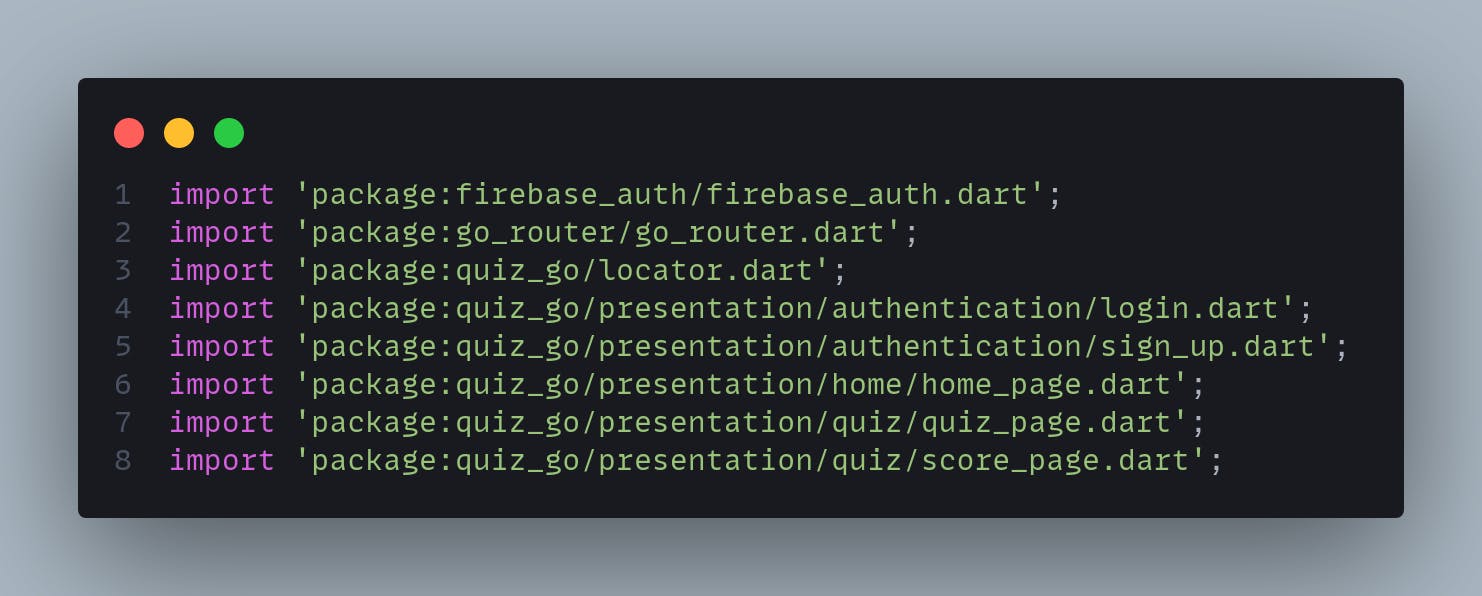
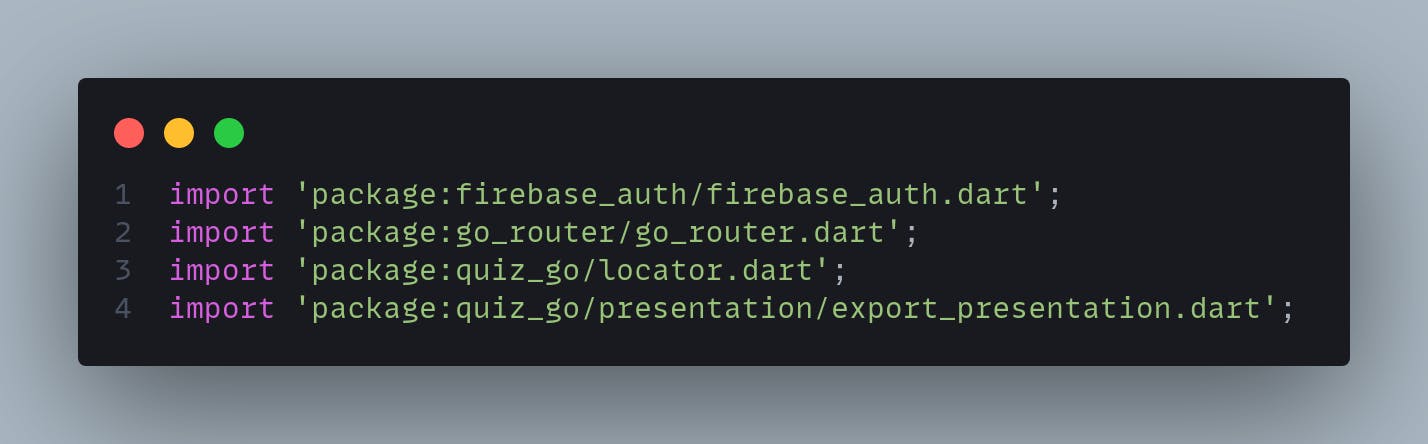
We can solve this by using export files or barrel files. This is mainly used in Flutter packages. For that, we need to create a file named export_presentation.dart in our presentation folder.
export './home/home_page.dart';
export './quiz/option_widget.dart';
export './quiz/question_page.dart';
export './quiz/quiz_page.dart';
export 'authentication/login.dart';
export 'authentication/sign_up.dart';
export './quiz/score_page.dart';
And the result is this :
2. Asset helpers
In Flutter app development, using images and SVG files is a common practice to enhance the visual appeal of your application. However, as your project grows, managing these assets efficiently becomes crucial, especially when you need to update or replace images at a later stage. Manually changing the path of every Image.asset() widget can be a cumbersome and error-prone task.
To simplify asset management in Flutter and streamline the process of updating assets, consider using asset helper classes. These classes centralize asset paths, making it easy to maintain and update them when necessary.
Creating an Asset Helper Class
Let's create an AssetHelper class that stores asset paths and provides a convenient way to access them throughout your Flutter project. Here's an example of how you can structure this class:
class AssetHelper {
  // Font
  static const String fontFamily = 'Gotham';

  // Assets
  static const String iconPath = 'assets/icons';
  static const String imagePath = 'assets/images';
  static const String animationPath = 'assets/animations';

  // Images
  static const String authSvg = '$imagePath/auth.svg';
  static const String profileImage = '$imagePath/profile.png';
  // Add more image paths as needed

  // Icons
  static const String dockerSvg = '$iconPath/docker.svg';
  static const String kubernetesSvg = '$iconPath/kubernetes.svg';
  static const String javaScriptSvg = '$iconPath/javascript.svg';
  // Include additional icon paths here

  // Lottie Animations
  static const String loadingAnimation = '$animationPath/loading.json';
  static const String trophyAnimation = '$animationPath/trophy.json';
  // Feel free to add more animation paths

  // Add more asset paths for your project's specific assets
}
Using Asset Helper in Your Flutter Project
Now that you've created the AssetHelper class, let's see how you can use it in your Flutter project. Instead of hardcoding asset paths like this:
Image.asset("assets/images/auth.jpg"),You can now simply use the AssetHelper class to access your assets:
Image.asset(AssetHelper.authSvg),3. Extensions
Flutter extensions are a developer's best friend when it comes to extending the capabilities of your Flutter app. They allow you to add new functionalities, improve code readability, and streamline your development process. Among the myriad of extensions available, one useful example is date formatting extensions, which simplify the way you work with DateTime objects.
Creating a Date Formatting Extension
Suppose you have a set of commonly used date formats in your Flutter app. Instead of repeatedly writing code to format DateTime objects, you can create a DateFormatting extension like this:
extension DateFormatting on DateTime {

  String toDatewithoutSlashes() {
    final format = DateFormat('dd MMM yyyy');
    return format.format(this);
  }

  String toDateWithFirstMonth() {
    final format = DateFormat('MMM dd yyyy');
    return format.format(this);
  }

  String toDateWithSlashes() {
    final format = DateFormat('dd/MM/yyyy');
    return format.format(this);
  }
}
In this extension, we've defined three methods: toDatewithoutSlashes(), toDateWithFirstMonth(), and toDateWithSlashes(), each of which formats a DateTime object according to a specific pattern.
Utilizing the Extension in Your UI Once you've created the DateFormatting extension, you can effortlessly use it within your Flutter user interface code. Here's how you can apply it to format a DateTime object:
DateTime date = DateTime.now();
String formattedDate = date.toDateWithSlashes(); // Example output: "15/07/2023"
By calling toDateWithSlashes() on a DateTime object, you instantly receive the formatted date without needing to write out the formatting details each time.
4. ScreenUtil
class MyApp extends StatelessWidget {
  const MyApp({super.key});

  @override
  Widget build(BuildContext context) {
    return ScreenUtilInit(
      designSize: const Size(360, 840),
      builder: (context, child) {
        return MultiBlocProvider(
          providers: [
            BlocProvider(create: (context) => locator.get<AuthBloc>()),
          ],
          child: MaterialApp.router(
            title: 'QuizGo',
            debugShowCheckedModeBanner: false,
            theme: darkTheme(),
            routerConfig: locator.get<AppRouter>().router,
          ),
        );
      },
    );
  }
}
And you can apply the constraints in your UI elements like this:
  @override
  Widget build(BuildContext context) {
    return Container(
      padding: EdgeInsets.symmetric(horizontal: 20.w, vertical: 10.h),
      margin: EdgeInsets.only(bottom: 15.h),
      decoration: BoxDecoration(
        color: getColor().withOpacity(0.25),
        border: Border.all(color: getColor()),
        borderRadius: BorderRadius.all(Radius.circular(15.r)),
      ),
  }